
This feature allows you to use popular authenticator apps for secure, flexible, and reliable login verification. Enjoy added resilience against phishing and SIM-swap attacks while streamlining your security process.
What is Authenticator App Support for Two-Factor Authentication (2FA)?
Authenticator App Support for Two-Factor Authentication (2FA) is a security enhancement that integrates time-based one-time password (TOTP) functionality into your HighLevel account. This update enables users to link their accounts with authenticator apps like Google Authenticator, Microsoft Authenticator, and Authy for an extra layer of protection. By transitioning to app-based verification, you benefit from stronger security measures over traditional SMS or email verification methods.
Key Benefits of Authenticator App Support for Two-Factor Authentication (2FA)
Authenticator App Integration: Secure your account easily using popular authenticator apps (Google Authenticator, Microsoft Authenticator, Authy). Generate time-sensitive verification codes (TOTPs) for safe logins.
Quick setup via QR code or manual entry.
Generates rapidly expiring codes for enhanced security.
Provides backup codes to ensure you retain account access.
This feature offers significant advantages that improve both security and usability while aligning with modern compliance standards. By implementing app-based authentication, you gain:
Enhanced Security: Protects against phishing and SIM-swap attacks by using a time-based verification code.
User Flexibility: Allows selection of your preferred authenticator app, catering to personal workflow and security needs.
Compliance Ready: Meets current security best practices, reinforcing overall platform governance.
Reduced Support Tickets: Minimizes issues related to 2FA delivery, expecting to lower support queries by around 150 per month.
How To Set Up the Authenticator App for Two-Factor Authentication (2FA)
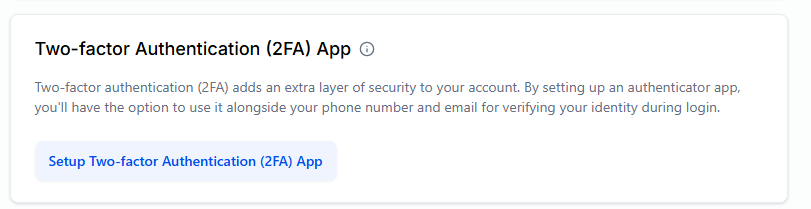
Step 1: Navigate to the Two-factor Authentication (2FA) App
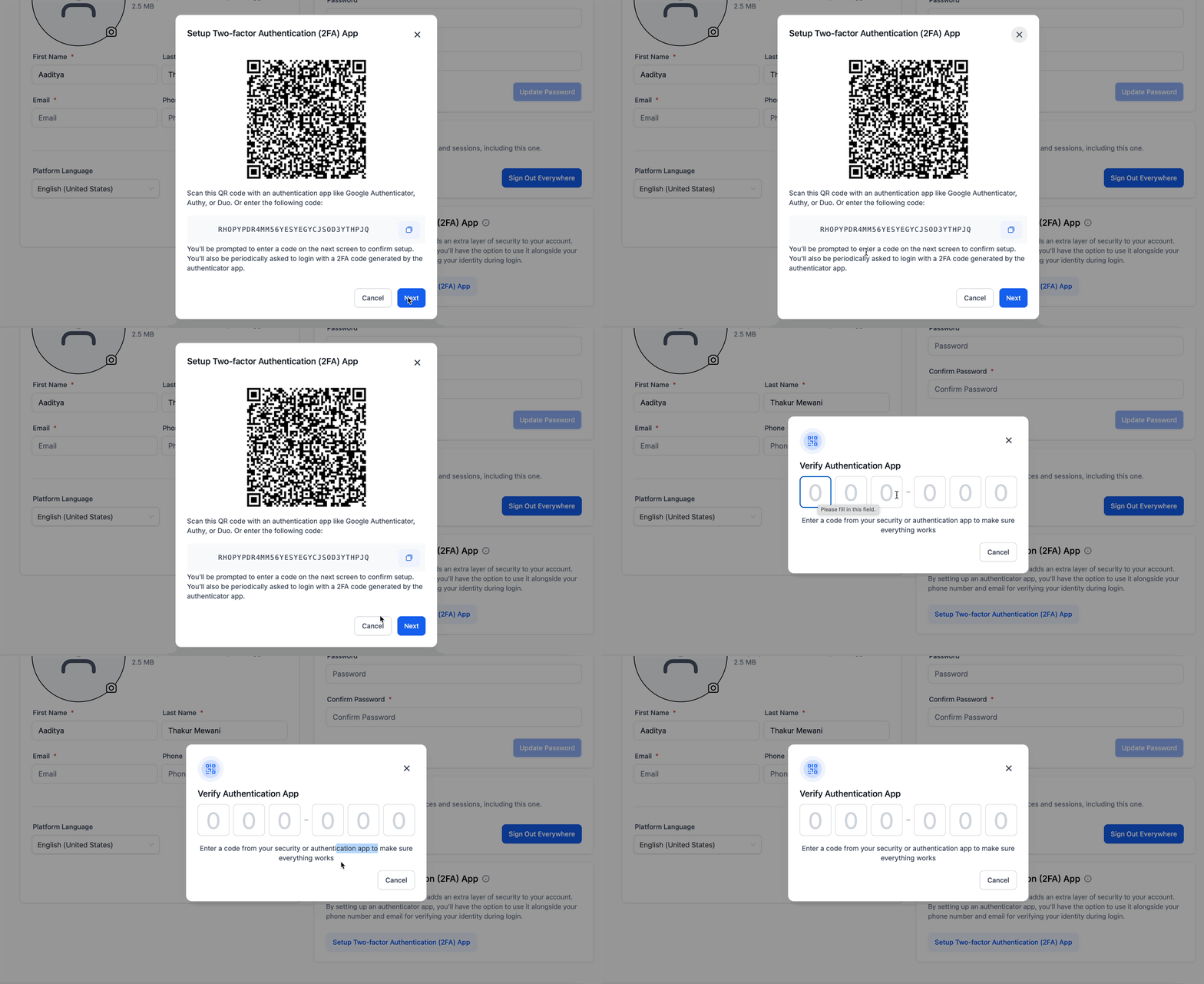
Go to Settings → My Profile. Click on the Setup button to get started. Use your preferred authenticator app to scan the displayed QR code or manually enter the setup code provided.
Step 2: Input the OTP from the authenticator app to finish the setup.
After scanning or manually entering the provided code into your authenticator app, you'll receive a one-time password (OTP). Click Next in HighLevel CRM, enter this OTP, and complete the setup.
Step 3: Save Backup Codes
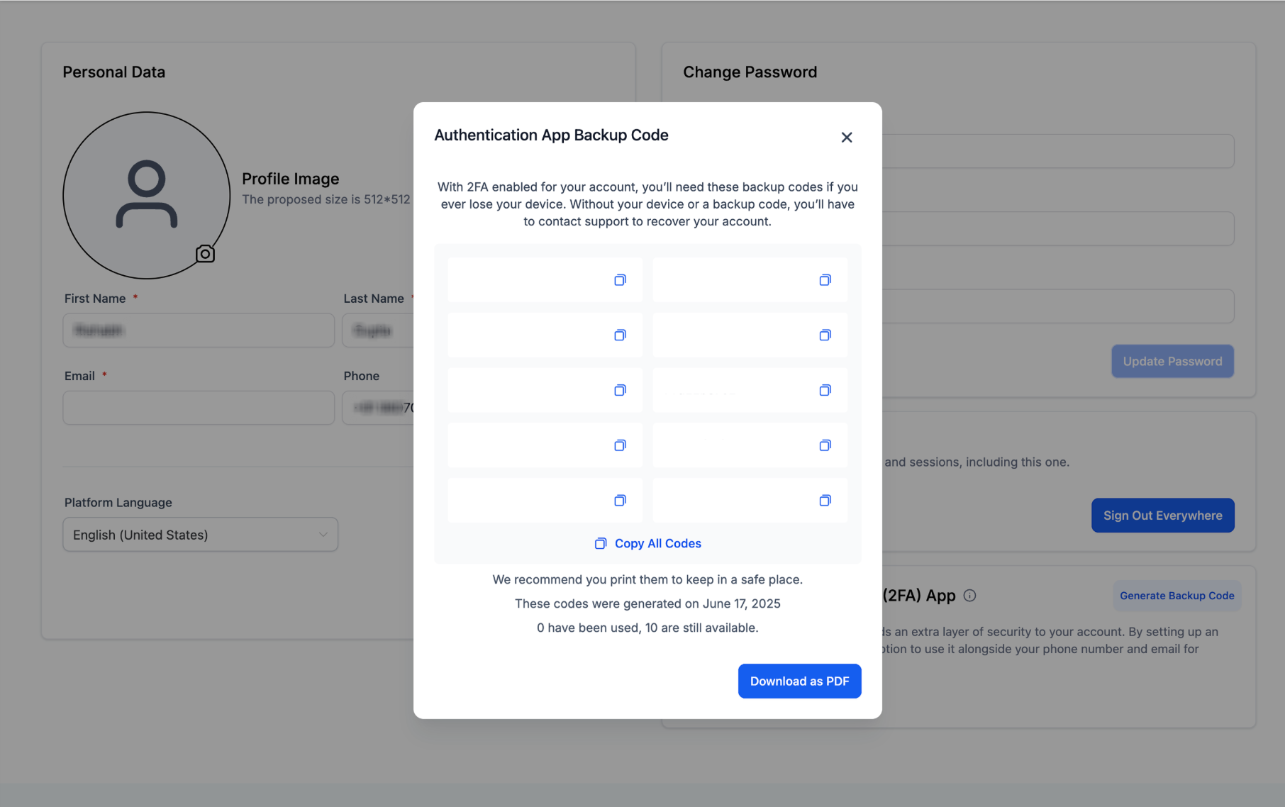
Save the backup codes discreetly to access the system in case app access is lost. In case backup codes are lost or accessed by others, users can reset backup codes from My Profile.
Please Note: Upon your next login, select the authenticator app option for 2FA and authenticate using the generated OTP.
IMPORTANT:
1. Only primary logged in user will be able to set an authenticator app in his account. Admins will not be able to set authenticator app for other users by using “login as".
2. 10 backup codes will be generated at a time, each code can be used only once.
3. On Authenticator App, Name of the agency will be visible. The authenticator App will be setup for an user-agency combination.