Adding tags in bulk allows you to label and organize large sets of contacts efficiently. Tags help categorize contacts based on shared traits, behaviors, or stages in the customer journey. This feature is essential for segmenting audiences, triggering automations, and managing CRM workflows at scale.
Bulk tagging is a powerful CRM operation that can streamline segmentation, personalization, and automation setup. Here are key advantages:
Save time by tagging multiple contacts in one action
Improve segmentation for more targeted communications
Trigger workflows based on tag-based conditions
Track campaign membership or progress with ease
Maintain clean and organized contact records
Enhance reporting and analytics by grouping relevant contacts
This section walks you through the exact process of applying tags to multiple contacts from the Contacts page.
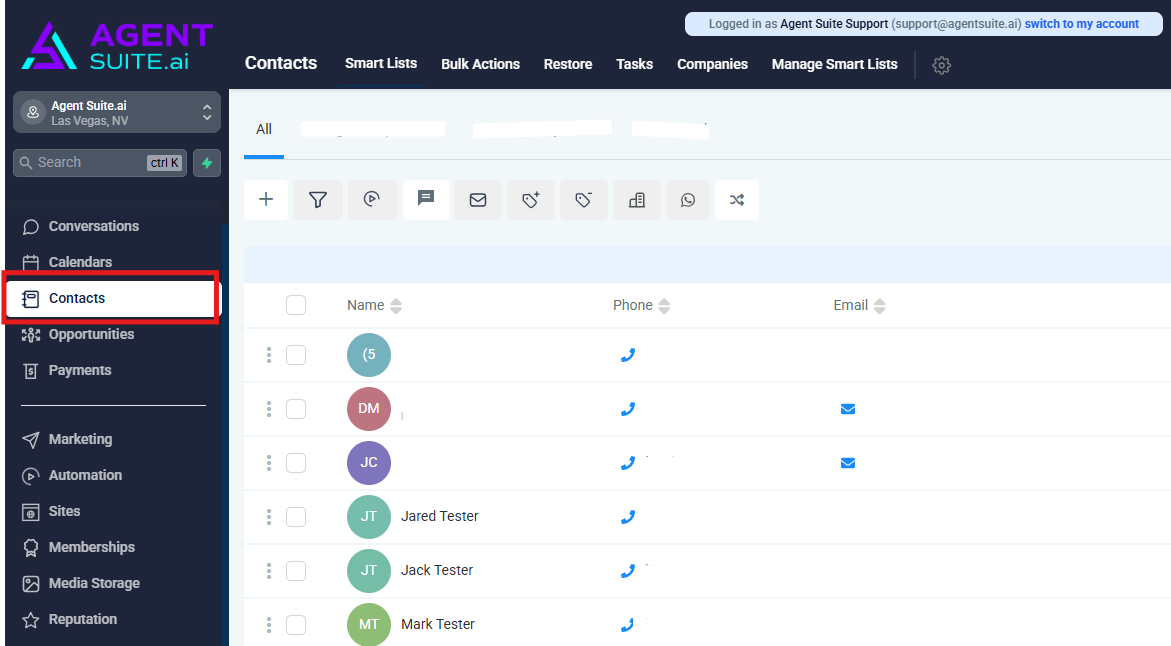
From your dashboard, click on the Contacts tab in the left-hand navigation menu
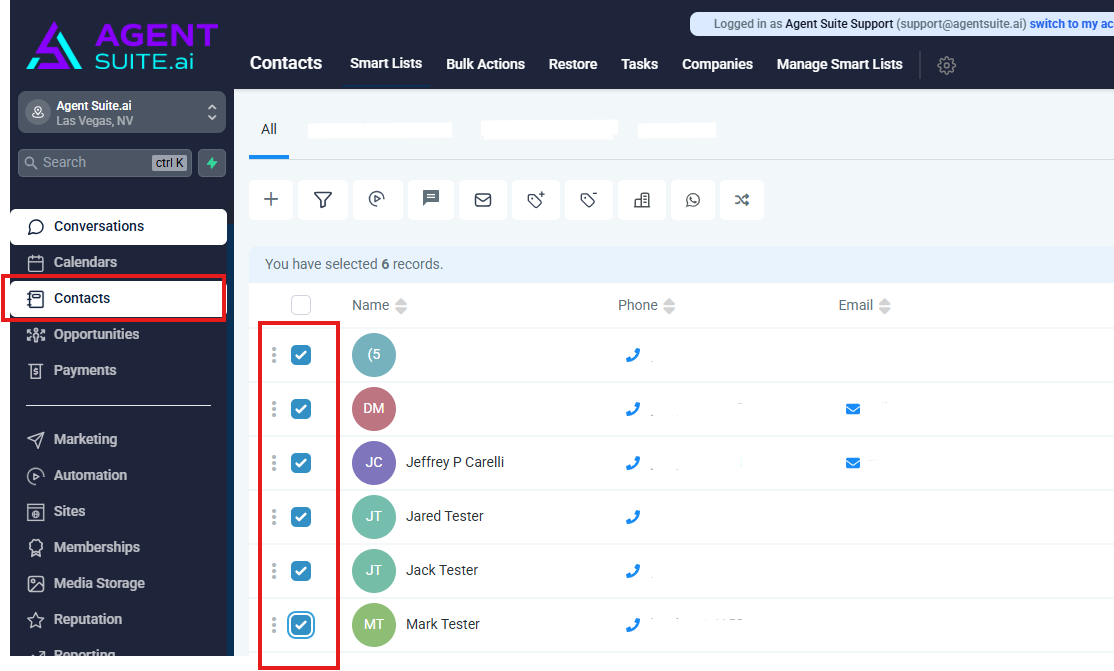
Use the checkboxes on the left side to select the contacts you want to tag. You can select as many records as needed.
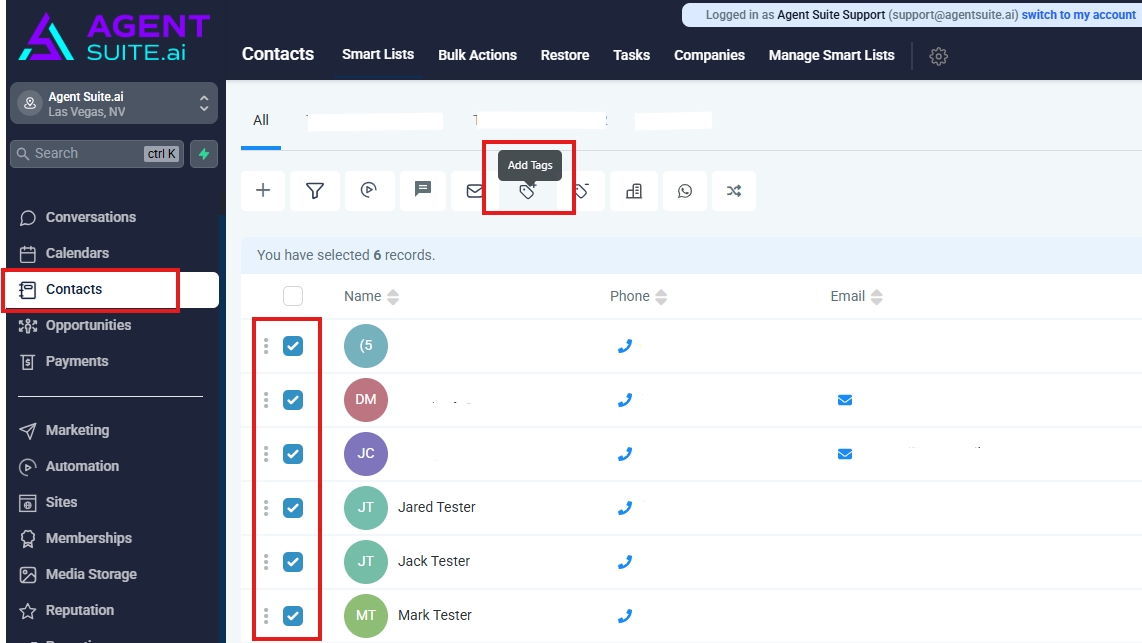
Once contacts are selected, click the Add Tag icon from the action bar at the top of the screen.
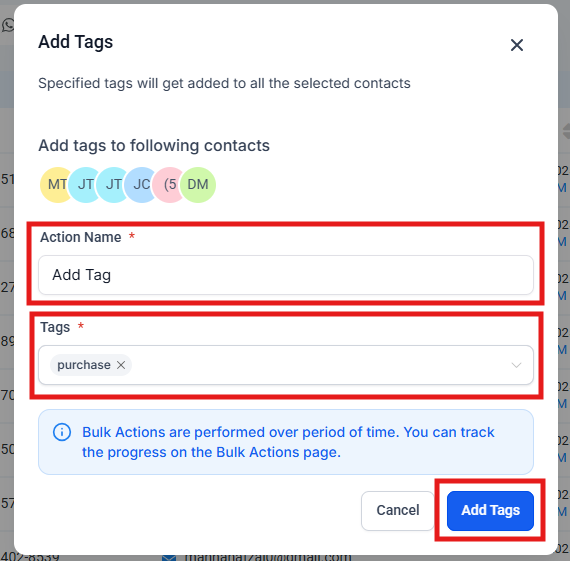
In the “Add Tags” pop-up window, Give your action a name under Action Name field. Next, Click the dropdown from the Tags field and select one or more tags from the list.
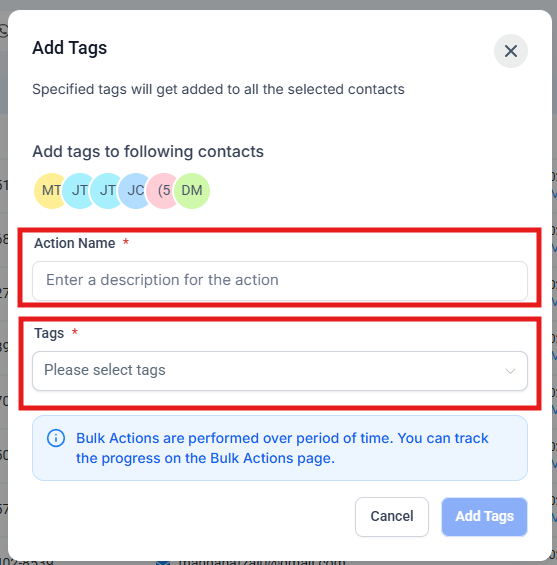
Once the tags are selected, click the Add Tags button to begin the operation. A confirmation message will appear.
This confirmation popup appears right after clicking “Add Tags”. It informs you that the tag assignment is now in progress for the selected contacts. To monitor the operation, you can click the “Check Progress” button, which will redirect you to the Bulk Actions tab where you can track the success or failure of the task in real time
The highlighted area shows your bulk tag action has been completed successfully. You’ll see the action name, who performed it, when it was created, and a “Show Stats” link to review the results. This helps you confirm everything was applied as expected.
.
