In this section, you can learn the exact steps to send SMS individually.
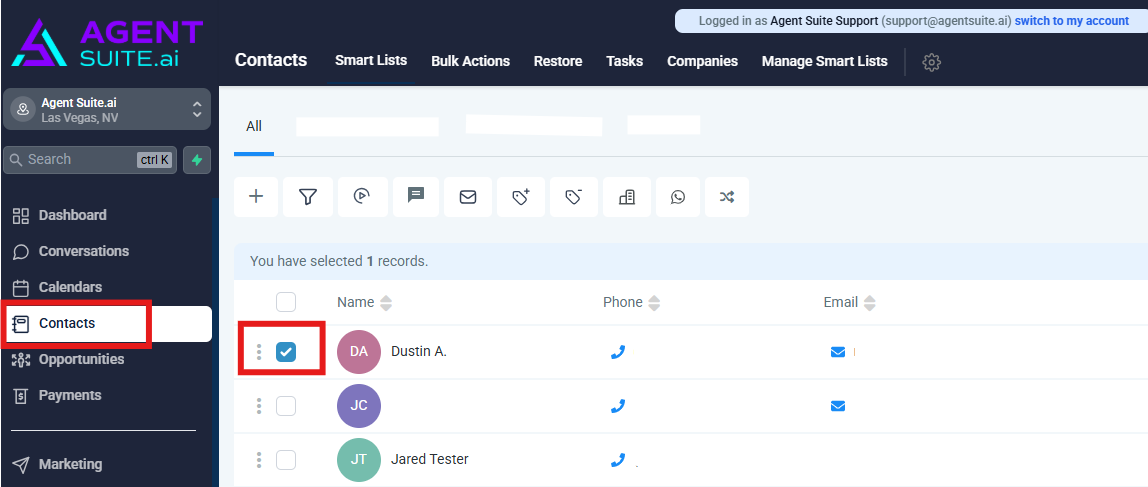
Use the checkboxes on the left side of the Contacts page to select the contact you want to send the SMS to.
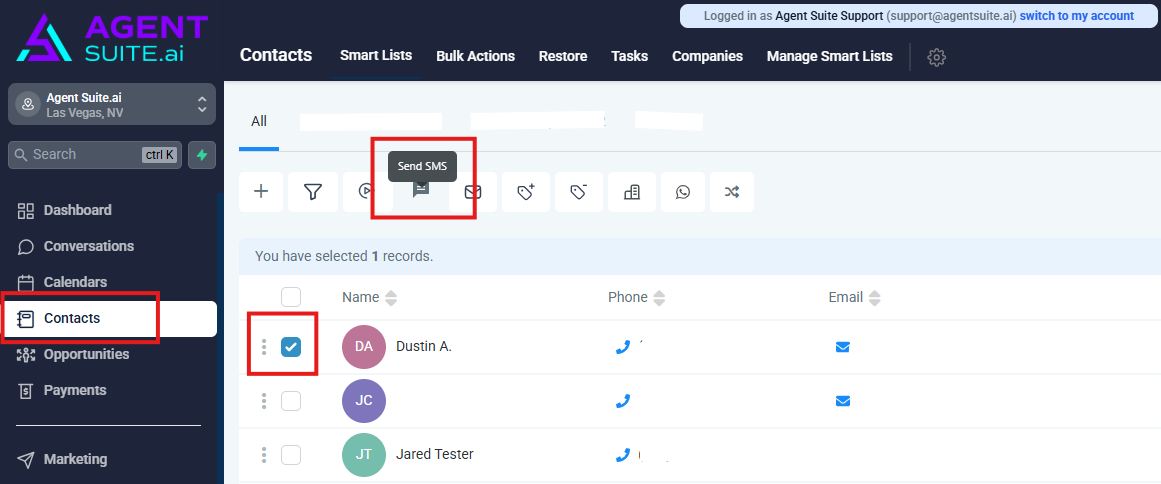
Click on the SMS icon in the top menu bar to open the SMS window.
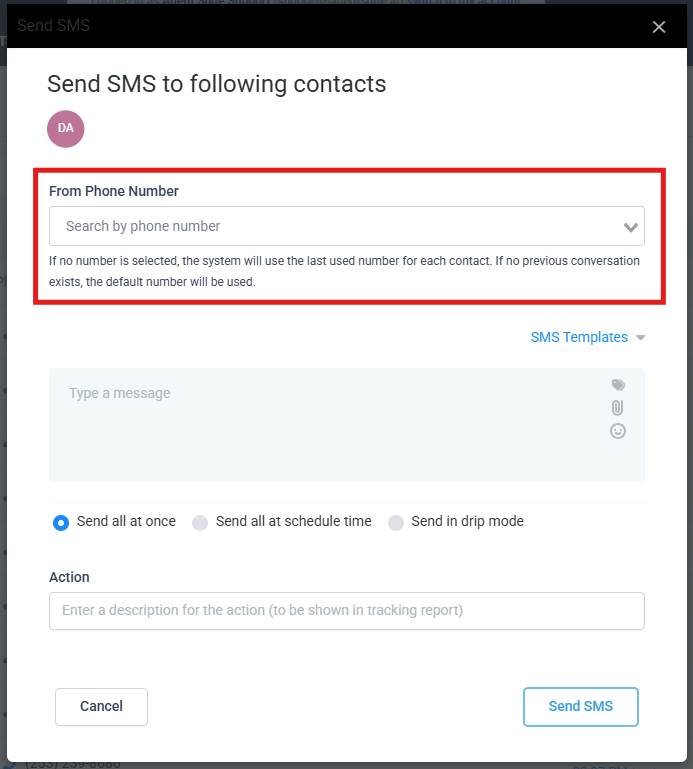
Choose the number you want to send from in the “From Phone Number” dropdown. If you leave it blank, the system will use the last number used per contact or the account default.
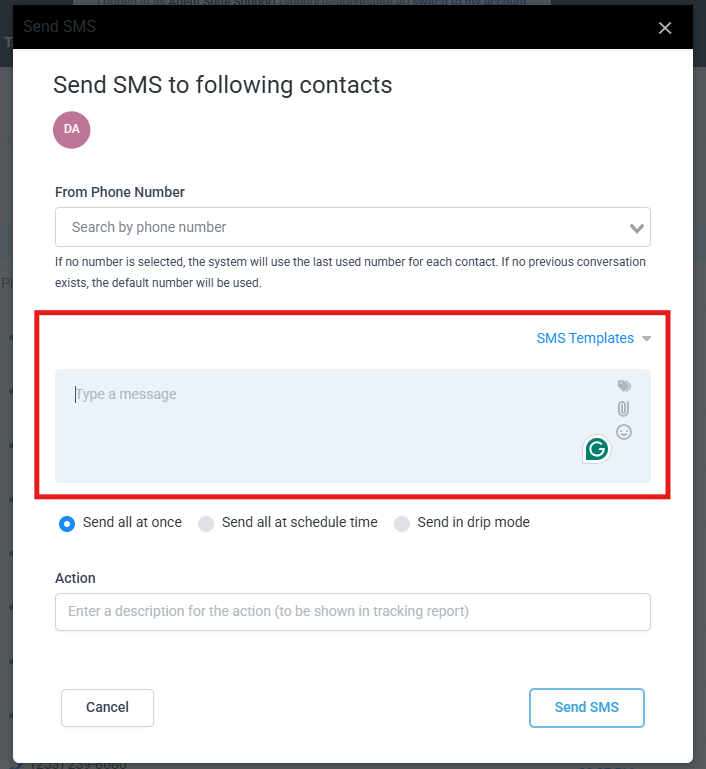
Type your custom message or click “SMS Templates” to insert a pre-saved message. You can personalize messages using custom fields, and even add emojis or attachments.
Send All at Once: Instantly sends your message to all selected contacts.
Send at Scheduled Time: Choose a date and time for when the message should be sent.
Send in Drip Mode: Send messages in smaller batches.
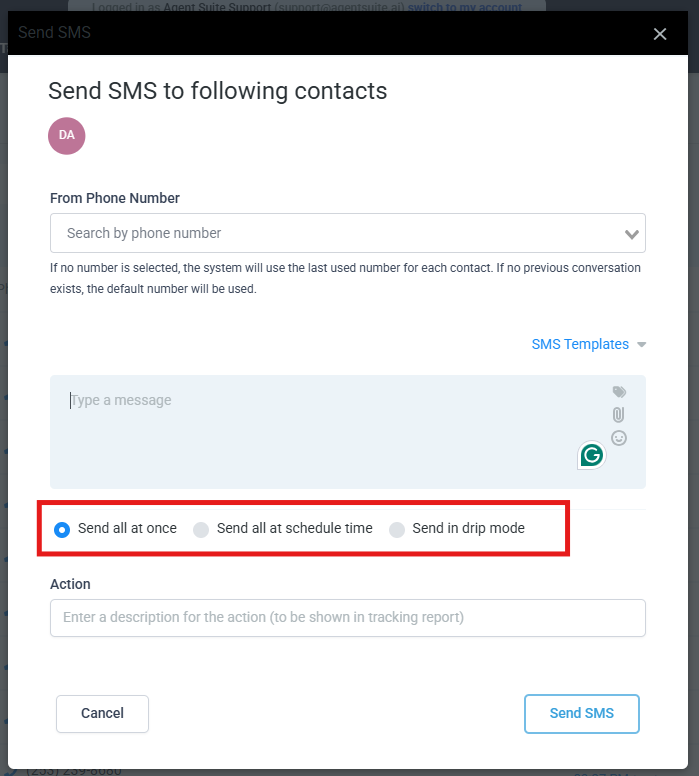
For drip mode, the following fields are required:
Start on : Date on which the SMS starts getting sent
Batch Quantity : No of contacts whom the SMS is sent in one batch
Repeat After : No of days or hours or minutes in between two batches of SMS being sent
Send on : Choose to send SMS only on particular days of the week
Process between (hours) : Allows you to send SMS only on certain hours of the day. This picks up the location time zone to decide the hours of sending the SMS
End At : The End At field sets the latest time of day your drip SMS messages can be sent. Messages outside this time window will be paused and resume sending the next day during the allowed timeframe.
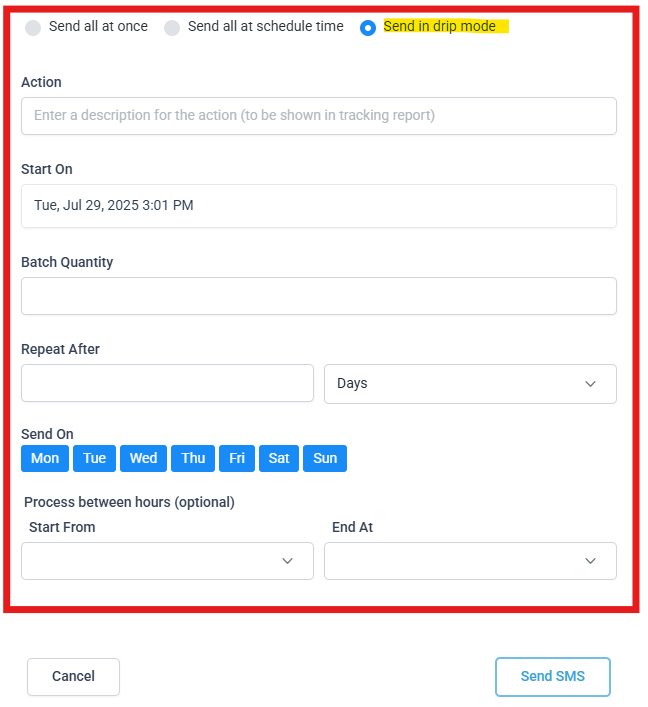
Add a label in the “Action” field so the activity shows clearly in reports and bulk actions.
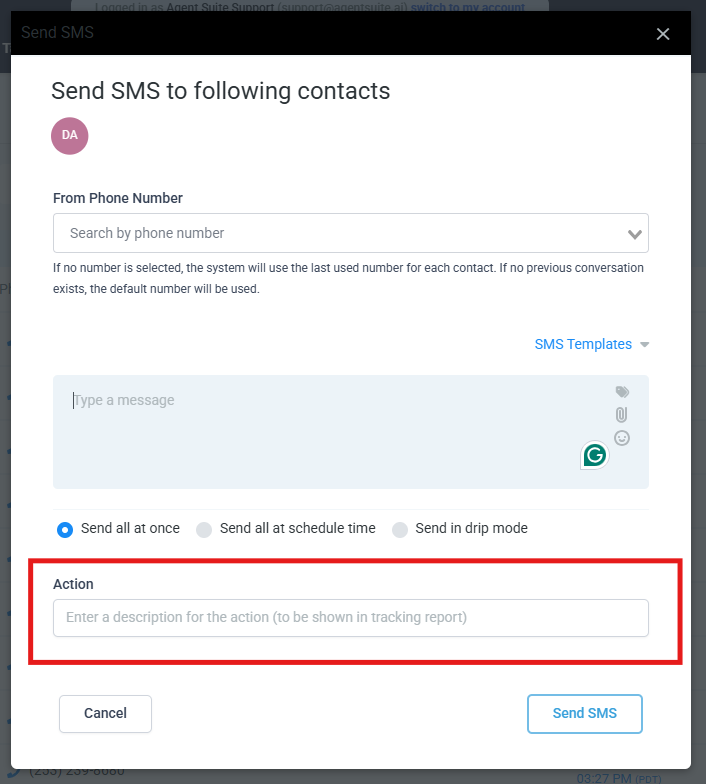
Submit your message. Your action is now queued and will begin processing.
Go to the “Bulk Actions” tab to view the status of your SMS send, including metrics like sent, delivered, clicked, and failed. Click “Show Stats” to view detailed results.
