Bulk Actions allow you to perform large-scale updates to contacts directly from your SmartLists. You can apply tags, send emails or SMS messages, delete contacts, or trigger workflows—saving significant time on repetitive tasks.
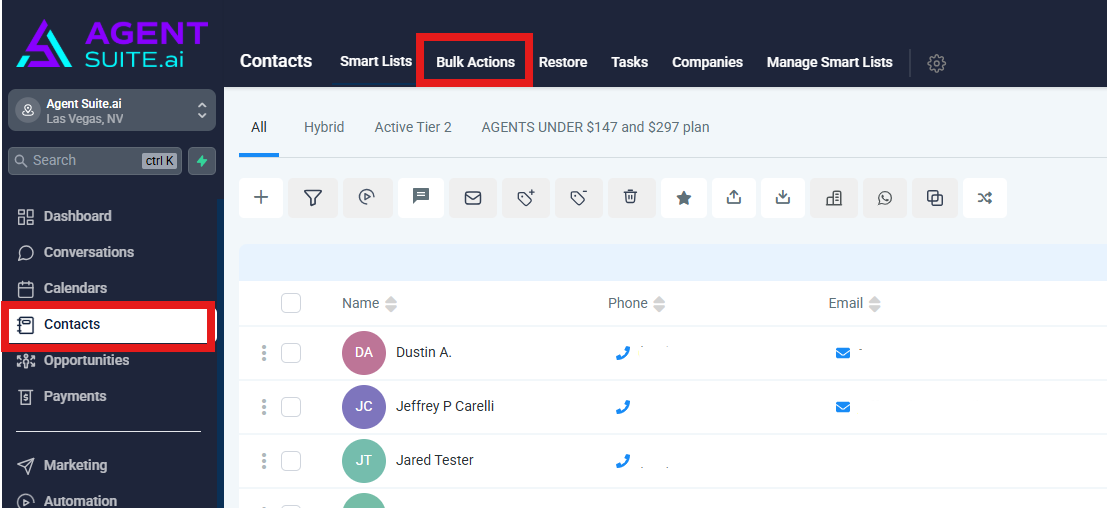
To view the status of a Bulk Action, go to Contacts > Bulk Actions > Show Stats. You can also pause, cancel or update further details about the Bulk Action by clicking on the 3 dots on the right of any bulk action.
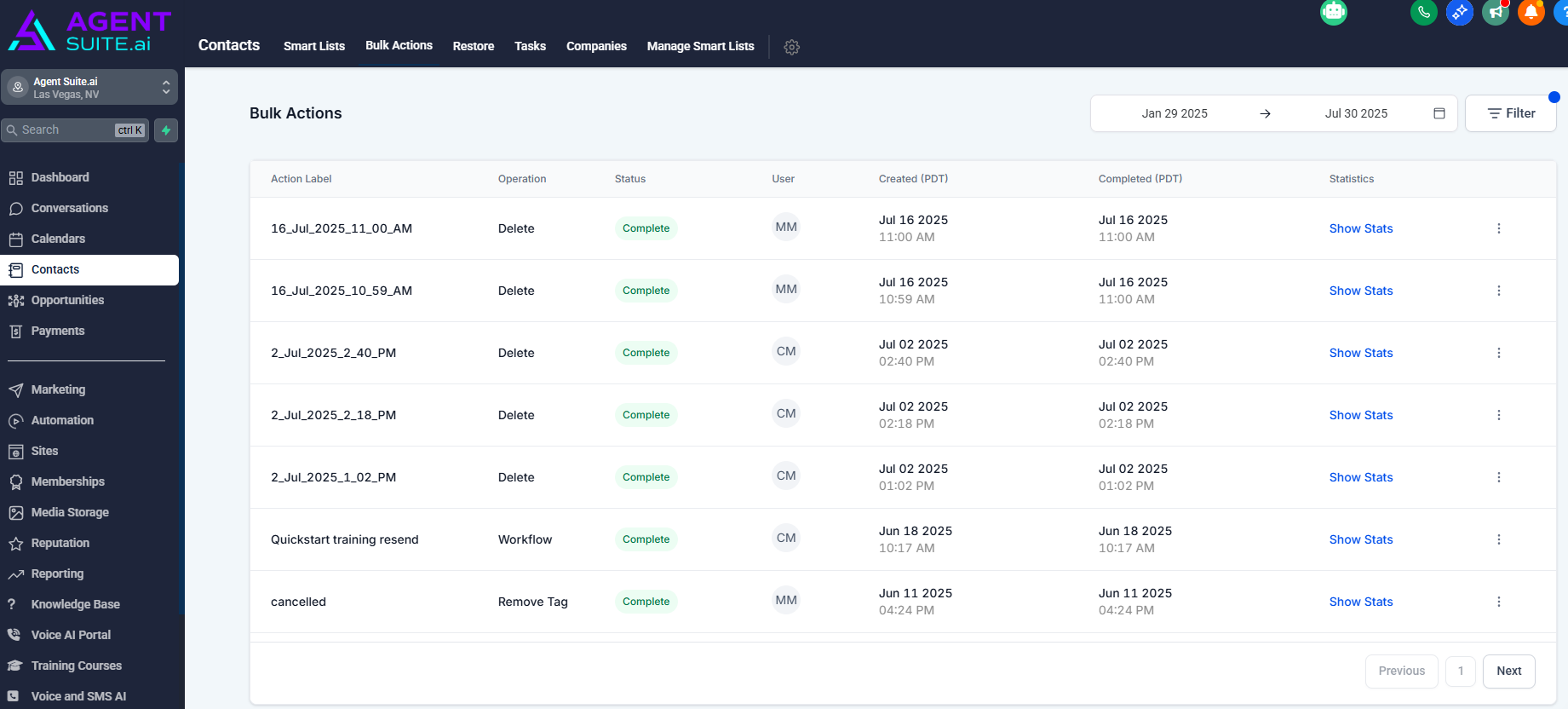
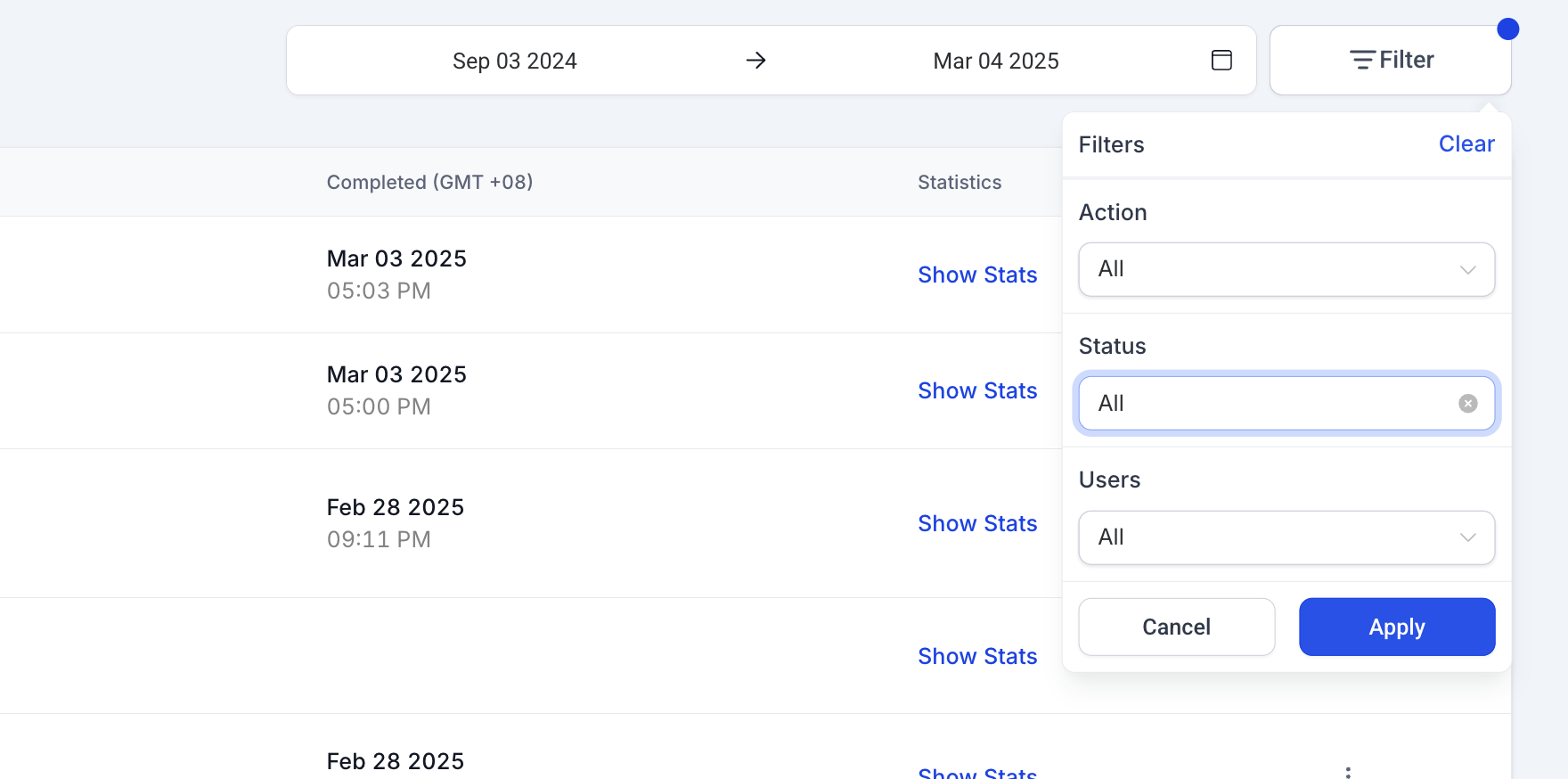
Users can refine their bulk action view using the Filter option in the top right corner of the Bulk Actions page.
Supported Filters:
Action Type (Import, Delete, Workflow, etc.)
Status (Complete, In Progress, Cancelled, etc.)
Users (Filter by user who initiated the bulk action)
Date Range (Select a specific timeframe to view bulk actions)
Filtered views can be shared via a URL, allowing quick access to relevant bulk actions.
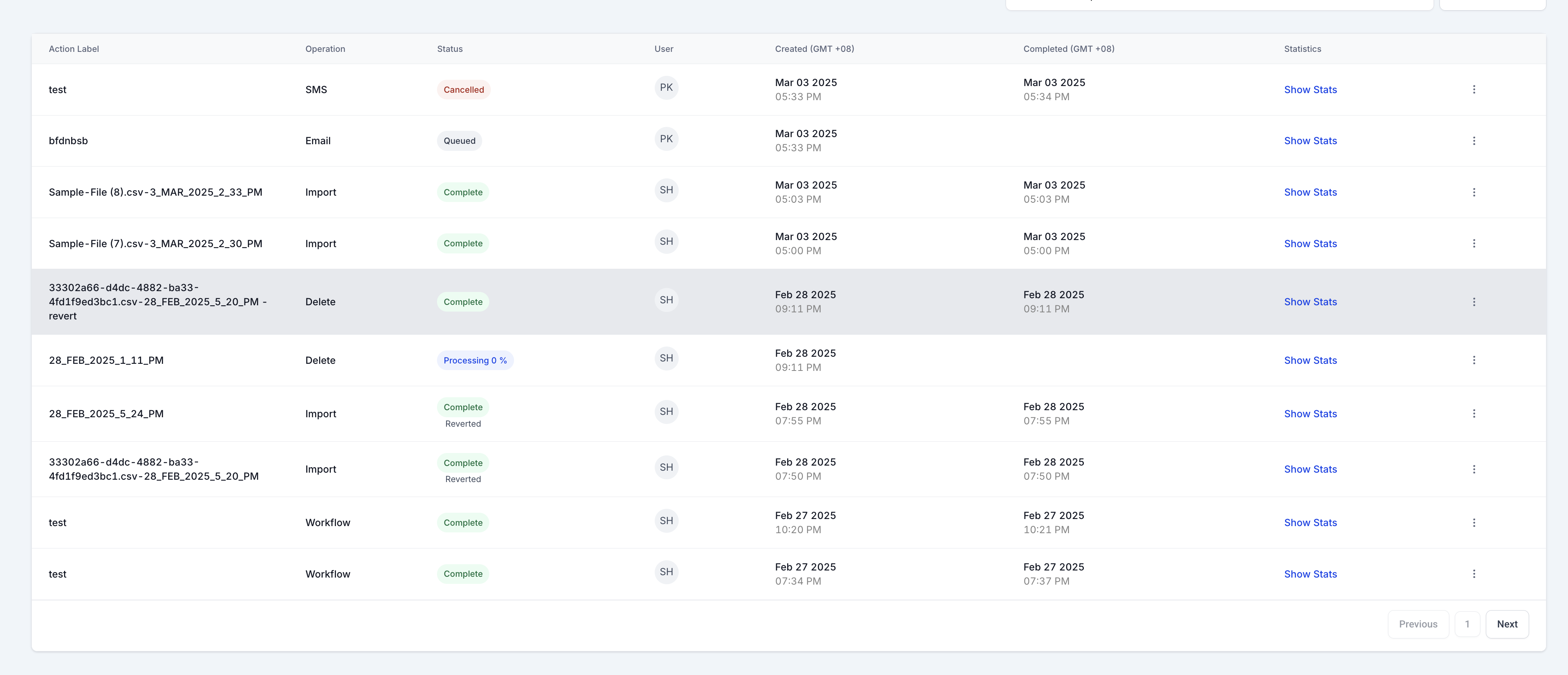
Color-coded status indicators help users quickly identify the state of each bulk action:
Green: Completed
Red: Cancelled
Blue: In Progress (with real-time percentage updates)
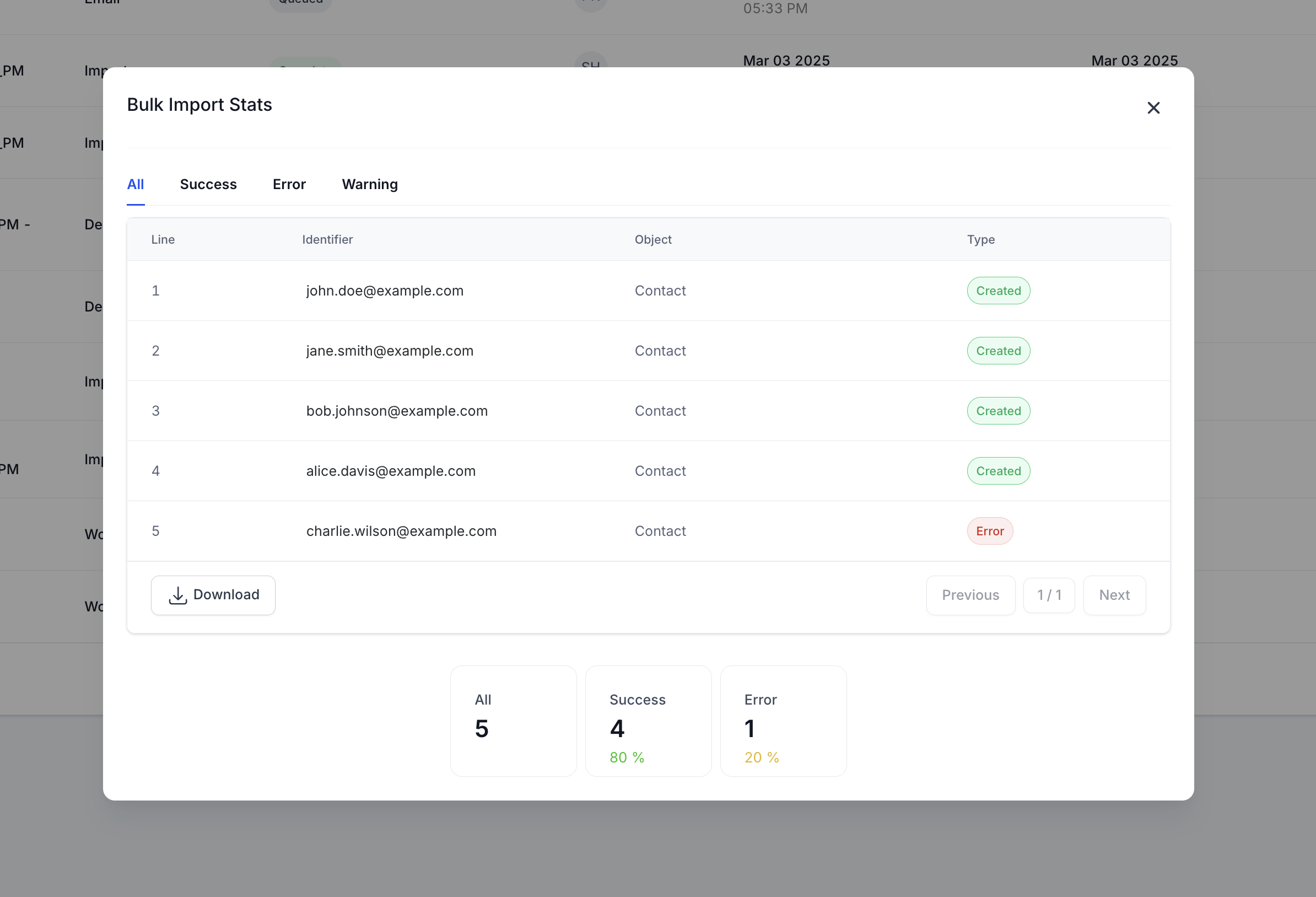
You can view key metrics for each bulk action by clicking Show Stats next to an action. A detailed breakdown includes:
Total actions processed
Success count
Errors and warnings
Downloadable reports for deeper analysis
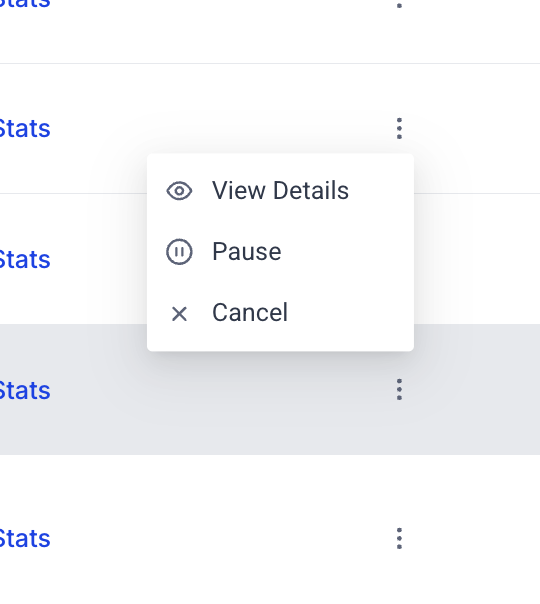
Users can take various actions on bulk processes. Available Actions:
Cancel a running bulk action
Revert a completed bulk action
Pause & Resume ongoing actions
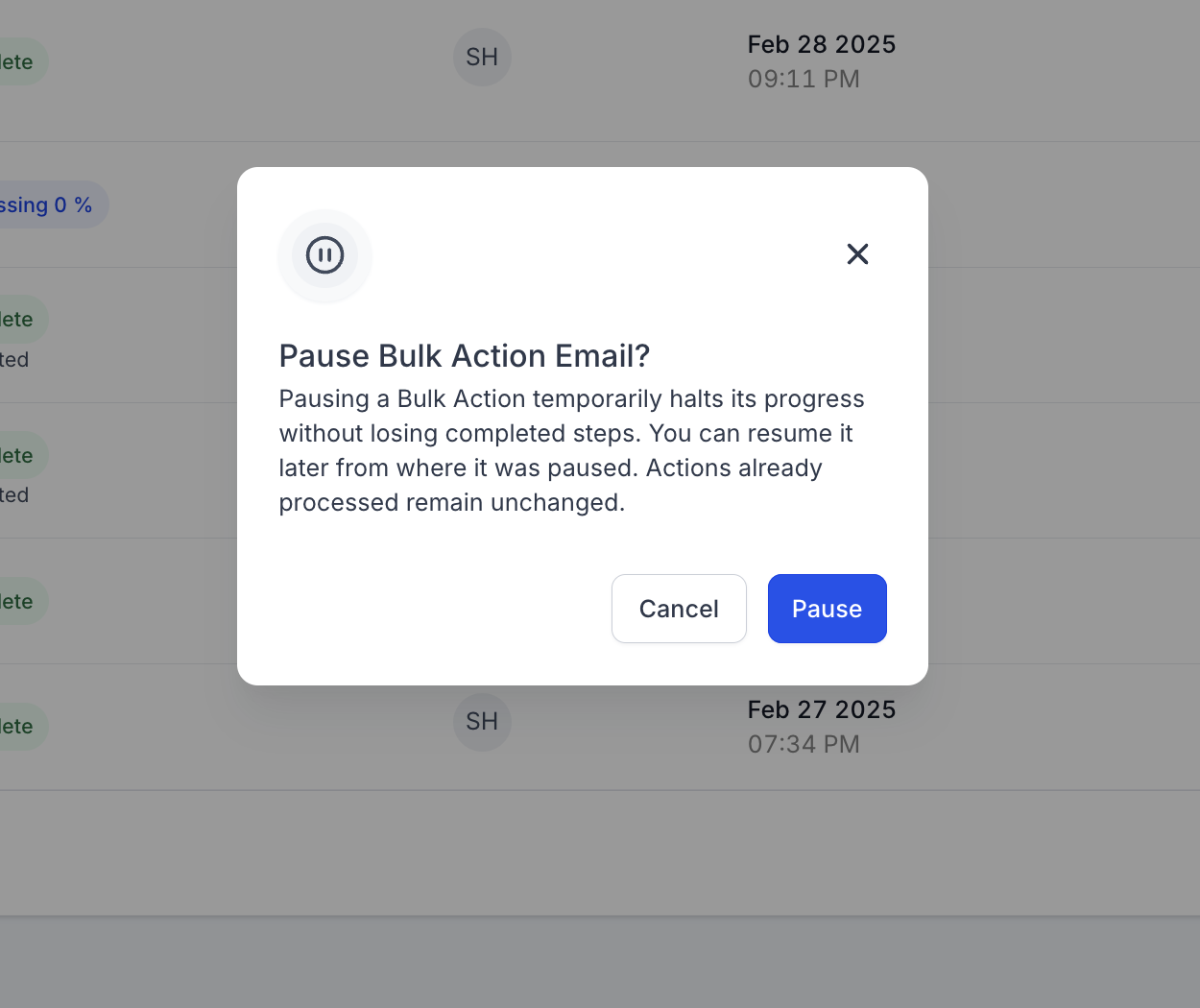
Click the three-dot menu (⋮) next to a bulk action.
Select the desired action (Cancel, Revert, Pause, Resume).
Confirm the action in the modal popup.
A notification will confirm the action’s success or failure.
