Tip: Before recharging your Hybrid Wallet, check whether your phone provider is LeadConnector or Twilio. If you’re unsure, reach out to Support for assistance. This ensures you’re adding funds to the correct wallet.
Important: Keep a positive wallet balance to avoid interruptions to services like SMS, calls, phone numbers, and AI features.
Enable Auto Recharge to automatically add funds when your wallet reaches your set threshold.
Lead Connector: To configure Auto Recharge for your Wallet Balance:
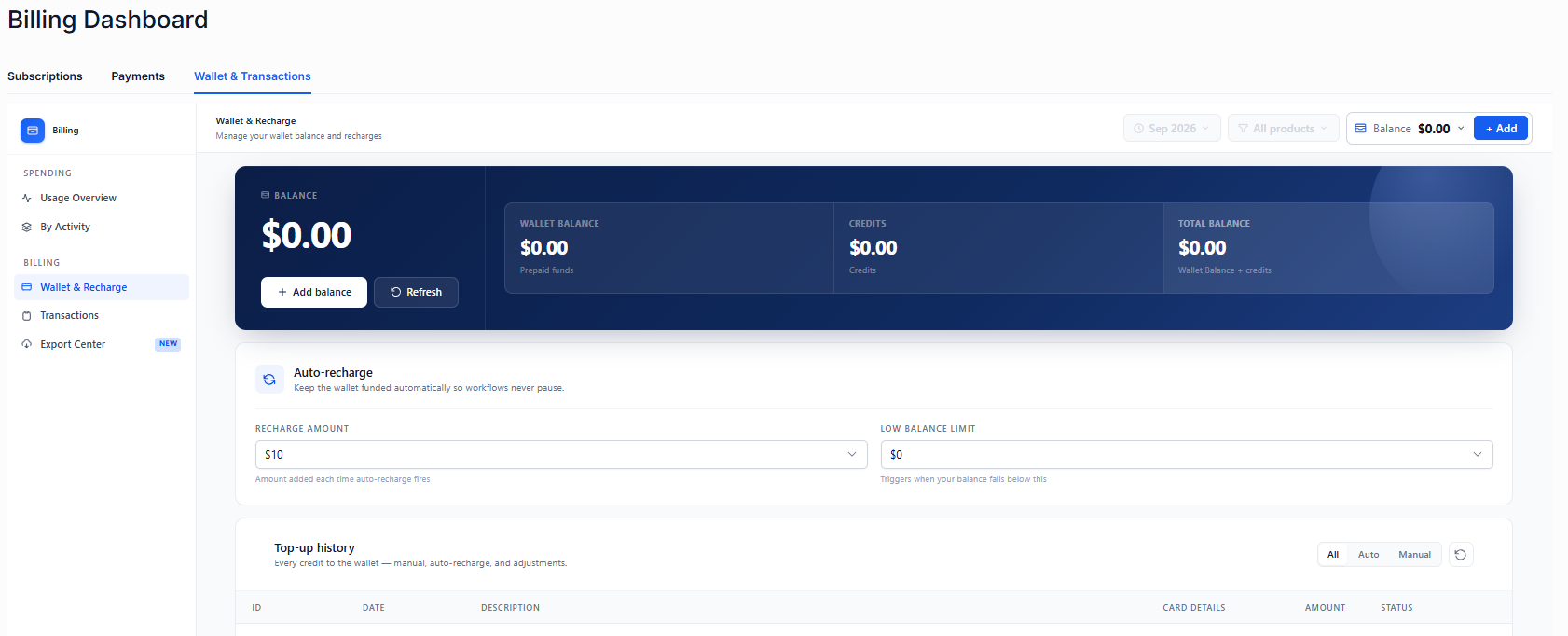
Go to Settings → Billing → Wallet & Transactions.
Locate the Auto Recharge section.
Set the Recharge Amount — the amount that will be automatically added each time Auto Recharge is triggered. You can also manually add funds to your balance anytime and as often as needed.
Set the Threshold Balance — the wallet balance that will trigger the recharge.
Click Save to apply your changes.
Twilio: To configure Auto Recharge for your Hybrid Wallet Balance:
Go to AI Center → Billing.
Log in and enter your password.
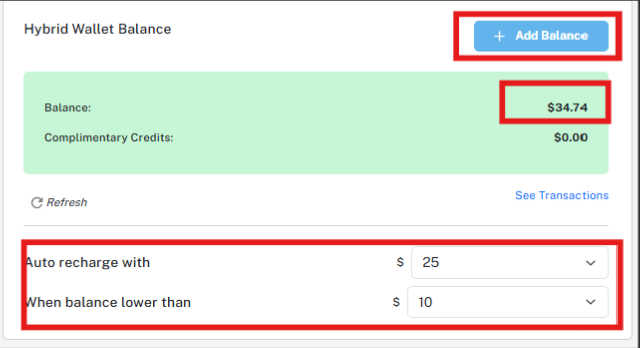
Go to Hybrid Wallet Balance.
Choose from the following options:
Add Balance — Manually add funds to your wallet.
Auto Recharge — Set the amount to automatically add when your balance reaches the set threshold.
When balance is lower than — Set the minimum wallet balance that will trigger Auto Recharge.