
Steps:
Navigate to Contacts → Smart Lists and click the Column/Table icon on the right. If you don’t see this option, search for Manage Fields instead.
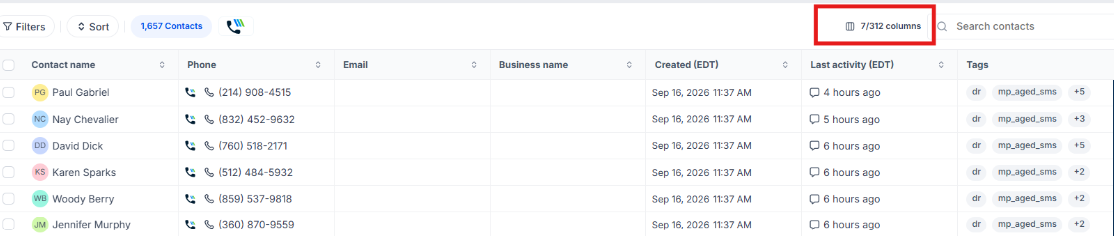
In the Manage Fields, drag and drop the columns to arrange them in your preferred order.
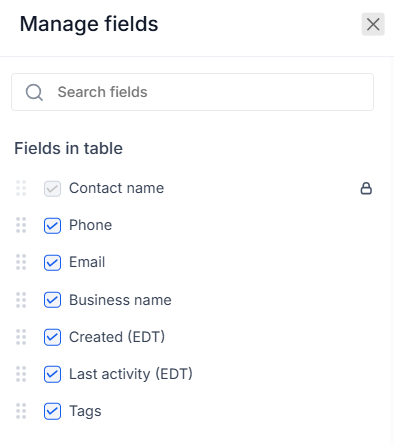
Add additional fields or remove fields you don’t need.
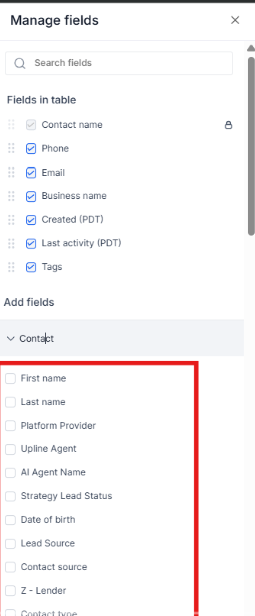
Place the most important fields first so they are easier to view when accessing your Contacts and Smart Lists.
Once you’re happy with the layout, click Apply, then select Save as New Smart List. The new column order will be reflected immediately.
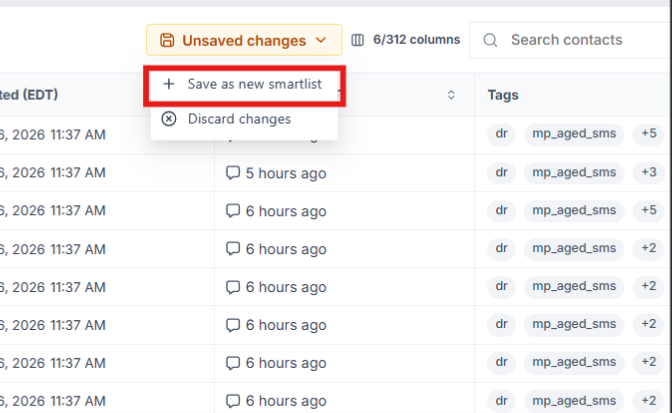
Important: Your Smart List saves the most recently saved column order and field visibility. If you reorder columns or show/hide fields later, make sure to save the Smart List again to keep your changes. Otherwise, it will continue using the last saved layout.