Go to your LeadIndicator workspace
Click Import Installed to fetch all sub-accounts linked to your GoHighLevel connection
Choose to:
Select specific sub-accounts to import
Select all to import all sub-accounts
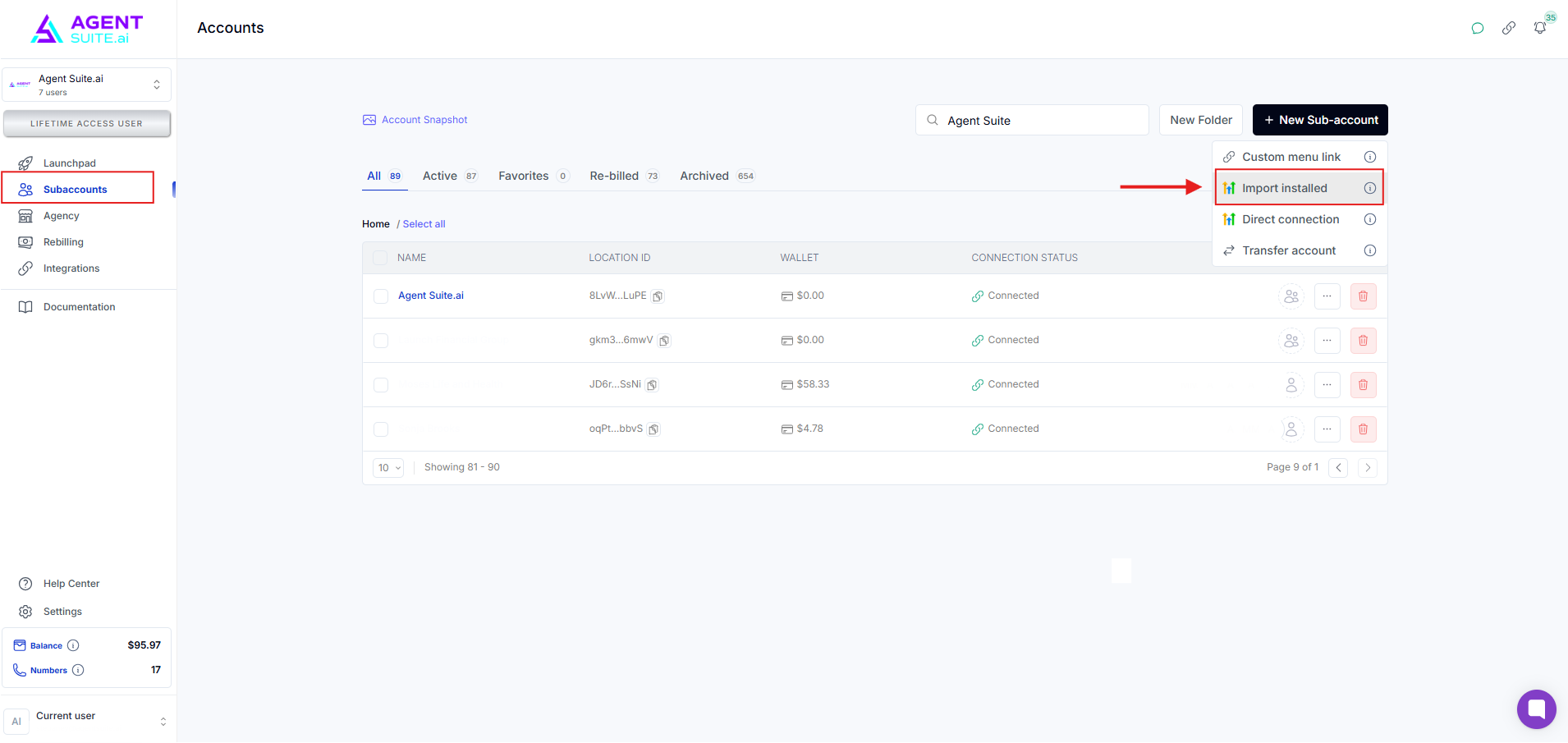
⚠ If you are on a limited plan (e.g., 3 sub-accounts), avoid importing more than your limit — archive extras as needed
In your workspace, click Custom Menu Link
Copy the unique URL generated for your agency and workspace
This link allows the AI Portal to be displayed in each sub-account
In GoHighLevel, switch to Agency View
Navigate to: Settings > Custom Menu
Click Create (if one isn’t already there)
Paste the exact custom menu link (leave variables untouched — system auto-configures per sub-account)
Keep it as an iframe
Name it (e.g., "AI Portal", "AI Builder" — your choice)
Set visibility:
Do not show on Agency Sidebar
Do show on all sub-accounts or select specific ones
Use role-based visibility if needed
Enable microphone access for the AI Portal
This allows testing of voice agents via the embedded Voice Lab
Skipping this may cause errors during voice tests
Click Save
Navigate to any sub-account
Scroll to the sidebar — you should see the new AI Portal menu item
Click it to verify it opens your portal for that sub-account
New sub-accounts will:
Auto-create in your workspace
Sync via OAuth
Display the AI Portal per location
Q: Can I import all sub-accounts at once?
A: Yes, but make sure you’re not exceeding your plan’s sub-account limit.
Q: What if I paste the custom menu link without the variable?
A: Don’t remove or replace the variable — the system configures it dynamically.
Q: Do I need to configure the link for each sub-account?
A: No, one setup handles all sub-accounts automatically.
Q: What happens when someone clicks the custom menu link?
A: It creates, links, and syncs the sub-account in your workspace.
Q: Why is microphone access needed?
A: It's required to test voice agents using the built-in Voice Lab.
