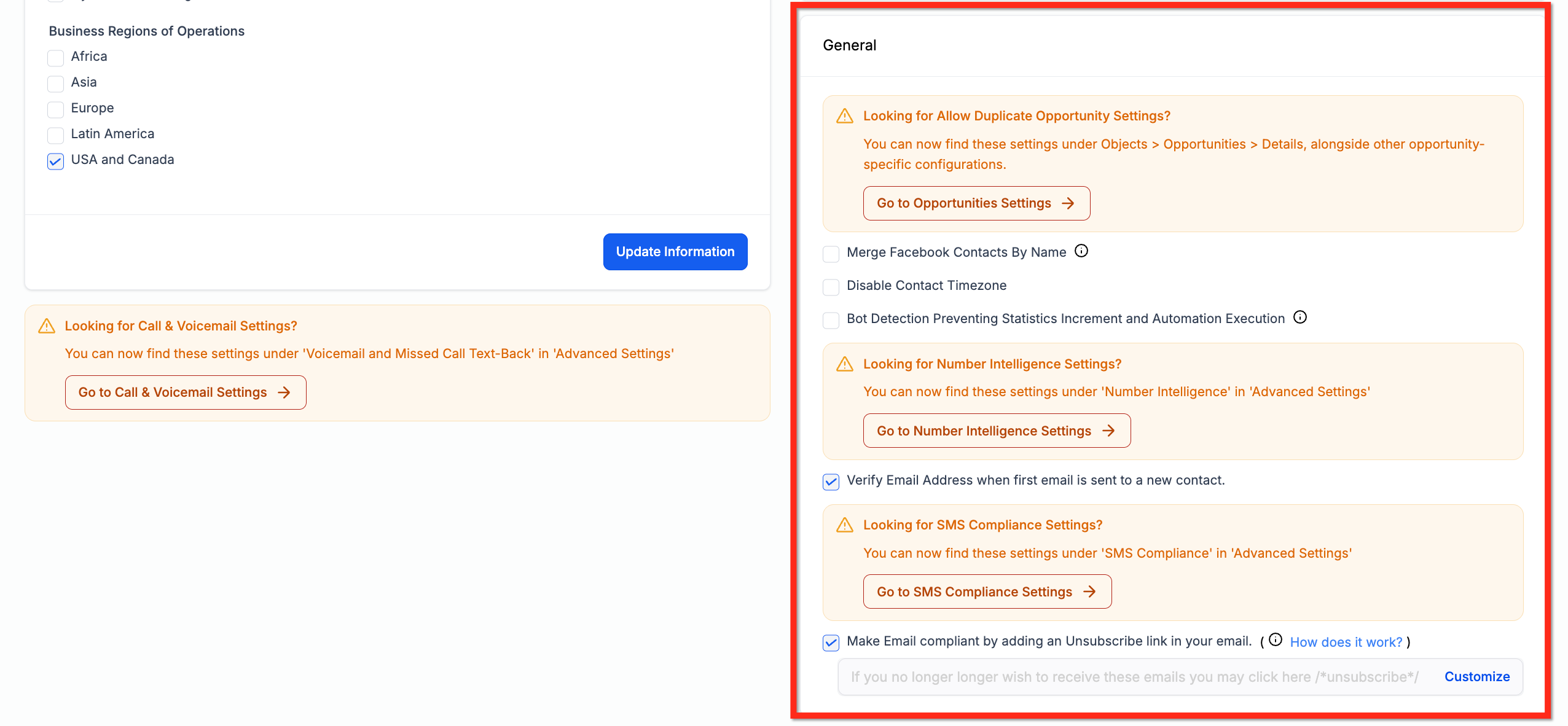
This section of your Business Profile is incredibly important so we will break down each section one by one below. Make sure you pay close attention to these settings as they can have significant effects on your sub-account. You may experience something in the CONTACTS section, not know how to fix it, and then come look at these settings and realize you turned on or turned off something that should or shouldn't have been.
Duplication Opportunity Settings
Turning this feature "ON" will allow duplicate opportunities to be created in the same pipeline. If this is turned "ON", new opportunities will be created in the same pipeline instead of an opportunity moving from one pipeline stage to another. In certain scenarios or use cases, this can be very useful, even necessary.
You can now find these settings under Objects > Opportunities > Details, alongside other opportunity-specific configurations. To go directly to this setting, click the Go to Opportunities Settings button.
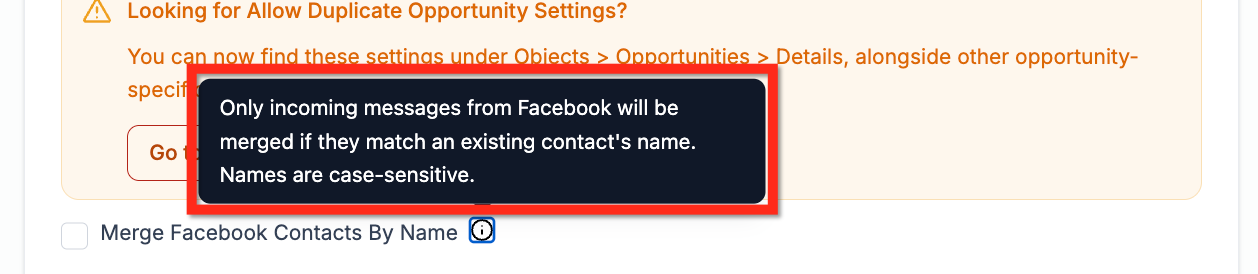
When contacts message your company from Facebook Messenger, a brand new contact will be created in your system. This is because Facebook only sends us the user's name, not their phone number or email address.
If you turn on this setting, contacts from Facebook Messenger will be merged into any existing contact with the same name. The name is case-sensitive and must be an exact match.
Disable Contact Timezone
Using your contact's timezone for various features can be critical. Let's say you are sending emails at 8 am EST, but your customer is located in California (PST), which would be 3 hours behind. You would be sending that same email at 5 am PST if you DID NOT make sure the contact's timezone was considered in the sending process.
If there is a reason why you don't need to use the contact's specific time zone, you can use this feature to turn off any recognition of the contact's timezone and only use the timezone assigned in the sub-account.
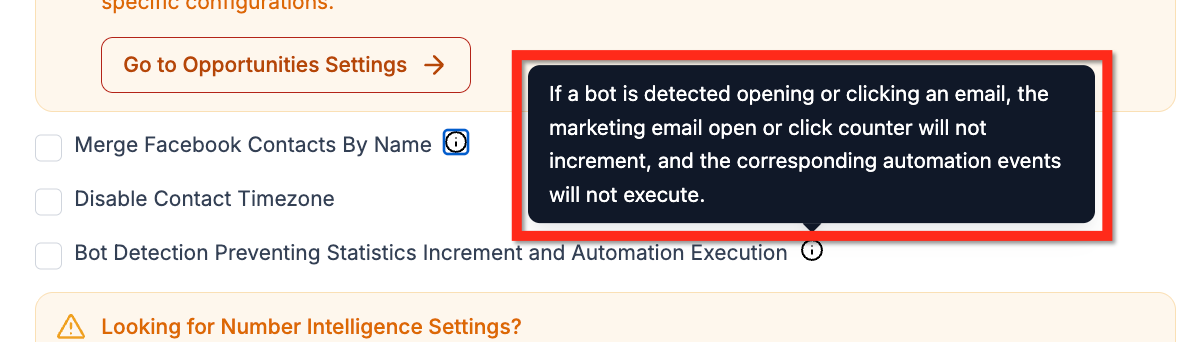
In the realm of email marketing, accurate metrics are crucial for understanding customer engagement and the effectiveness of your campaigns. Bots can artificially inflate your open and click rates, leading to misleading data. To combat this, we have introduced the Bot Detection Preventing Statistics Increment and Automation Execution feature. Turn this setting on to reduce the impact of bot actions on your data.
Verify Email Address when first email is sent to a new contact
This feature will automatically attempt to validate a contact's phone number when you attempt send the very first SMS message to a new phone number in your account. If the phone number is marked as "Invalid", the SMS message will not be sent, and you will need to validate the phone number before being able to send SMS messages to this contact in the future.
The standard price for validating phone numbers is $0.005 per validation attempt. This amount will be deducted from your agency account or sub-account credits wallet every time a phone number validation attempt occurs.
SMS compliance is incredibly important and needs to be taken very seriously. That is why HighLevel automatically configures "Opt-Out" messaging in all of your sub-accounts by default. You can configure these opt-out messages and even turn them off (which we do not recommend).
You can now find these settings under SMS Compliance in Advanced Settings. To go directly to this setting, click the Go to SMS Compliance Settings button.
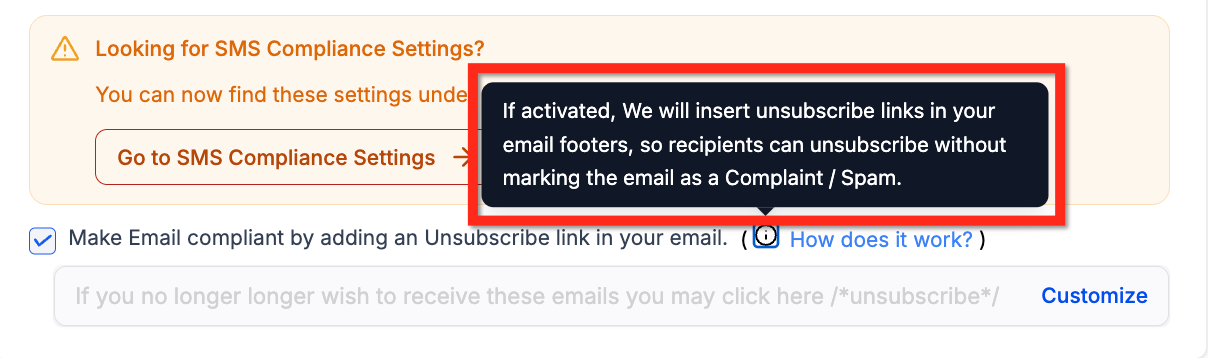
New laws are being passed all the time around sending emails in order to keep consumers safe and their information secure. That is why HighLevel automatically configures your email unsubscribe link in all of your sub-accounts by default. You can configure the unsubscribe link and even turn it off (which we do not recommend), but to get you and your customers started, we make sure that this setting is turned on and configured by default in all sub-accounts.