
Before you put your leads in an AI Workflow, TEST ON YOURSELF by creating yourself as a contact.
Follow these steps exactly!!!!
1. Click the “Import Leads Bu8on”
2. Import and Map the Fields from the spreadsheet to the fields in Agent Suite
3. Click button “do not import data in unmatched fields” button
4. Click Next
5. Name your Import – how will you identify this import
6. Click “Advanced”
7. Make sure “Phone” is selected in the find existing contacts based on field
8. In the tags field enter the Line of Business (LOB) includes “Mortgage Protection, Final Expense, General Life etc)
9. Click on the box

10.Click “Submit”
To add contacts into a workflow you need to select the workflow and the “tag” that must be added to the contact record, that triggers the corresponding workflow based on the type of leads (aged = reactivation, new = New)
These are the standard triggers for the Aged MP Leads, New MP leads and Aged FEX lead workflows.
• New Mortgage Protection = new mp ai

• Aged Mortgage Protection Leads Tag = MP Lead Reactivation
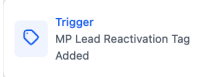
• Aged Final Expense Leads Tag = FEX Lead Reactivation

11.Go to Contacts
12.Select the contacts you want to add to the AI workflow
13.Click on the add tag icon in the ribbon 14.Add a description of the action for audit purposes. Note: if you go to “bulk actions” you can see where you’ve uploaded contacts, added tags in bulk to contacts etc.
15.Add the “trigger tag” for the appropriate workflow
16.Click “add tags” You have now successfully added your Leads/Contacts into an AI Workflow.
TEST ON YOURSELF FIRST!